Main Stream or Substream: Choosing Resolution and Bitrate for Analytics
Most IP cameras send more than one video stream at once. The main stream carries full resolution and frame rate for recording. One or more substreams carry a smaller, lighter version for live viewing on phones and multi-camera grids. Analytics can use either, and the choice affects accuracy, CPU load and network traffic more than many model decisions do.
This article explains what each stream offers, how to work out which one your analytics needs, and how to configure a substream specifically for analysis.
What the streams are
Typical settings, which vary by camera model:
- Main stream: the camera's full resolution (1080p, 4 MP, 4K or more), full frame rate, high bitrate. Intended for recording.
- Substream: a lower resolution (often somewhere from 640 × 360 to 720p), sometimes a lower frame rate and bitrate. Intended for viewing.
- Third stream on some cameras, often configurable, sometimes useful as a dedicated analytics stream.
Each stream usually has its own settings for resolution, frame rate, bitrate, codec and keyframe interval. Some cameras restrict which combinations are allowed, and some limit the number of simultaneous connections, so check that your analytics connection does not compete with the recorder.
The key question: does the model use the extra pixels?
The model sees the frame resized to its input size. If the model input is 640 pixels wide, a 4K frame and a 720p frame both end up at 640 pixels wide. Above the model's input size, extra stream resolution adds decode cost and nothing else.
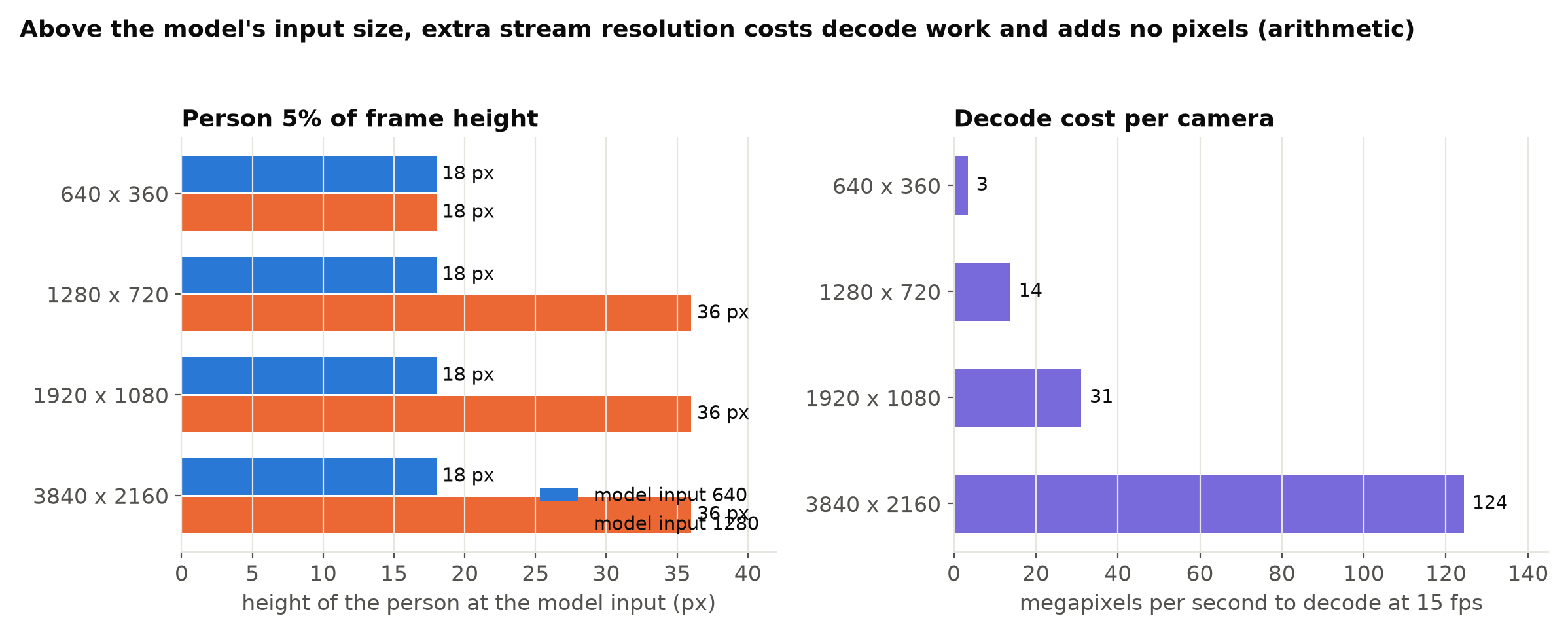
So the rule of thumb is: the stream resolution only needs to exceed what the model input can use. For a 640 model on a 16:9 camera, a stream around 640 pixels wide already provides everything the model will see. For a 1280 model, a 720p stream does.
There are exceptions:
- Cropping or tiling. If you crop a region of interest or split the frame into tiles, each crop is resized separately, so a higher-resolution stream gives more pixels per object. See Input Resolution or Model Size.
- Second-stage models. A classifier on detection crops, such as helmet or plate reading, benefits from crops taken from a high-resolution frame, even when the detector runs on a small one.
- Evidence snapshots. Alerts often need a clear image for a person. These can come from the main stream or the recorder, separately from analysis.
Bitrate matters as much as resolution
A substream at a sensible resolution but a very low bitrate is smeared with compression artefacts: blocky edges, smudged detail, flickering in moving areas. Small and moving objects suffer most, and they are usually the ones you care about. Substreams are often configured with low bitrates because they were meant for phone viewing.
Check a few frames from the substream at full size, especially busy scenes with movement, and compare with the main stream resized to the same size. If the substream looks noticeably worse, raise its bitrate. Increasing the bitrate of a small stream usually costs little network capacity compared with the main stream.
Frame rate and keyframes
Set the analytics stream's frame rate to what the analysis needs, not what looks smooth to people. Decoders must usually decode every frame received, so a stream at 25 fps costs five times the decode work of one at 5 fps, even if you analyse only five frames a second. See How Many Frames per Second Does Your Analytics Need?.
The keyframe interval (also called GOP length or I-frame interval) affects how quickly a decoder recovers after packet loss or a reconnect, because decoding can only restart from a keyframe. A very long interval can mean seconds of grey or corrupted frames after a network glitch. An interval of one or two seconds is a common compromise.
Codec
H.265 needs less bandwidth than H.264 for similar quality, but decoding it costs more on some hardware and less on others, depending on hardware decoder support. On a Raspberry Pi 5, for example, H.265 is decoded in hardware and H.264 is not. Choose the codec your analytics hardware decodes efficiently. See Hardware Video Decoding on Edge Devices.
Camera or recorder?
Streams can be taken directly from the camera or re-streamed by the video recorder. Taking them from the recorder avoids extra connections to the camera, but some recorders re-encode or limit stream options, and the recorder becomes a dependency. Taking them from the camera gives full control but may hit the camera's connection limit. Ask what the site's installer prefers, and test both if you can.
A practical procedure
- Note the model input size and whether you crop, tile or run second-stage models.
- Calculate the stream resolution that the model can actually use.
- Configure the substream (or third stream) at that resolution, with the frame rate the analysis needs and a bitrate high enough to avoid visible artefacts.
- Record a few minutes of both streams in busy conditions and at night.
- Run the model on both, matched in time, and compare detections, especially small and moving objects. See Measuring Video Analytics by Events, Not Frames.
- If results match, use the substream. If the main stream is clearly better, find out why: resolution, bitrate, or night settings.
- Write the stream settings into the per-camera configuration, because a replaced or reset camera returns to defaults. See Managing Per-Camera Configuration at Scale.
Checklist
- Know the model input size and any crops or second stages.
- Use the lowest stream resolution the model can fully use.
- Set the analytics stream's bitrate high enough to avoid artefacts.
- Set its frame rate to the analysis rate.
- Keep keyframe intervals short enough for quick recovery.
- Choose a codec your hardware decodes efficiently.
- Check camera connection limits and recorder behaviour.
- Compare main and substream results on real footage before choosing.
- Record stream settings per camera.
Next steps: Reading RTSP Streams with OpenCV and FFmpeg and Scaling Video Analytics to Hundreds of Camera Streams.