When the Camera Changes Its Frame Rate at Night
A dwell-time alert works perfectly during the day. At night it fires late, or not at all. Nothing in the code changed. What changed is the camera: in low light it lengthened its exposure, and to do that it lowered its frame rate. Every rule that counts frames now counts a different length of time.
This article explains why cameras do this, how it breaks a pipeline, how to detect it, and how to write the pipeline so it does not care.
Why cameras slow down in the dark
A camera's exposure time cannot be longer than the interval between frames. At 25 frames per second, each frame can be exposed for at most 40 ms. In a dark scene that may not be enough light, so many IP cameras offer a low-light mode, often called slow shutter or something similar, that lowers the frame rate to allow longer exposures. At 12.5 fps, exposures of up to 80 ms become possible.
The setting differs by manufacturer and model, and it is often on by default. Some cameras also change frame rate for other reasons: to keep the bitrate under a limit, when a second client connects, or after a firmware update. You cannot assume the frame rate set in the camera's web page is the frame rate you receive at 3 a.m.
What breaks
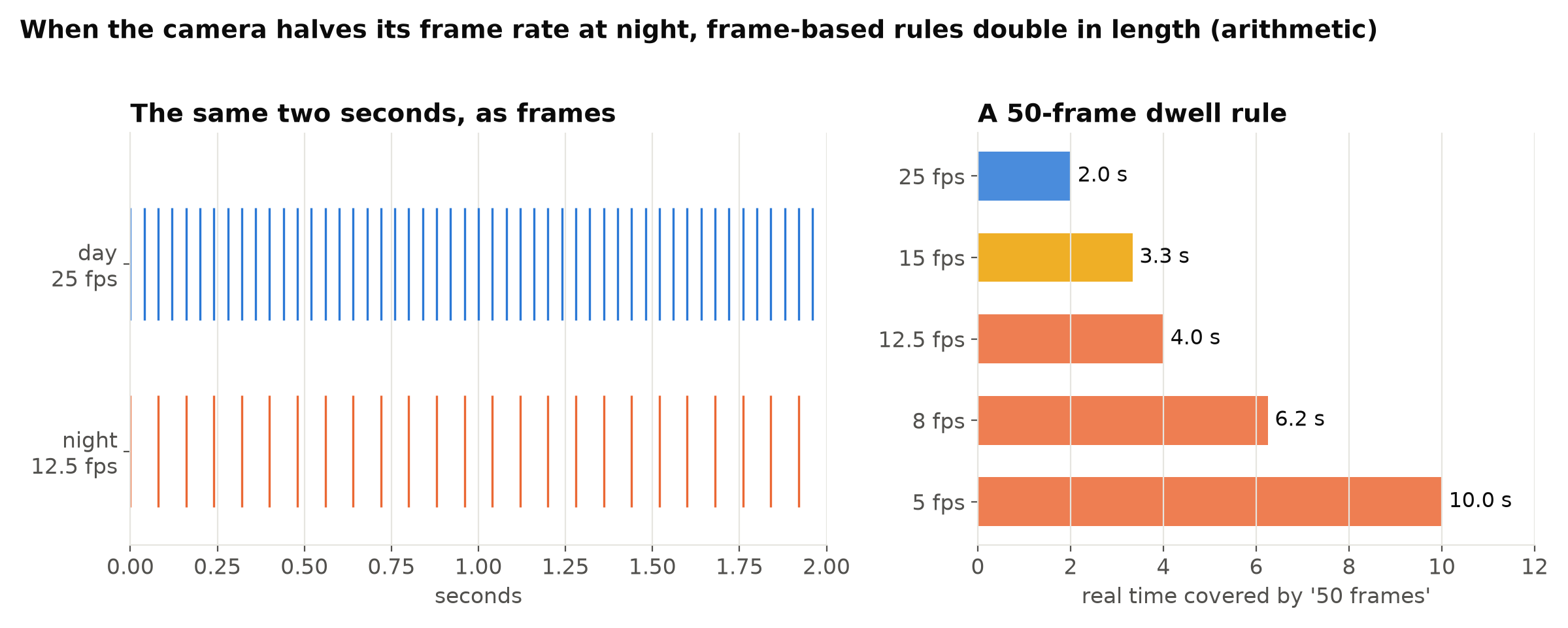
Anything written in frames rather than seconds changes meaning when the frame rate changes.
The usual victims:
- Dwell and duration rules. "In the zone for 50 frames" doubles in real length when the frame rate halves.
- N-of-M filters. "Detected in 5 of the last 8 frames" spans twice as long at night, adding delay to every alert.
- Trackers. Many trackers keep a lost track alive for a number of frames. In Ultralytics' ByteTrack configuration, for example,
track_bufferis set in frames. At a lower frame rate, a track survives longer in seconds. Objects also move further between frames, so matching by overlap gets harder and ID switches increase. See Object Tracking Explained. - Speed estimates. Pixels per frame converted with a fixed fps give wrong speeds.
- Recordings. A clip written to a file with a fixed frame rate in its header plays back too fast or too slow if the real rate varied.
- Throughput maths. Capacity planned for 25 fps per camera is wrong in both directions: lighter at night, and wrong again if a camera goes up.
That clip is worth pausing on, because the detector is not the problem. Both lanes detect the person perfectly, every single time. The only difference is how many of those detections arrive, and therefore how far apart they are.
At 25 fps the boxes overlap by 0.78 and association is trivial. At 5 fps the same walk puts them at 0.24, below the threshold, and the tracker concludes it is looking at someone new. Dwell timers reset, counts inflate, and nothing anywhere logs an error.
How to detect it
Do not trust the frame rate the stream reports. With OpenCV, cap.get(cv2.CAP_PROP_FPS) returns a value from the stream's metadata, which may be the nominal rate, not the actual one. Measure arrivals instead:
import time, collections, cv2

cap = cv2.VideoCapture(url)
arrivals = collections.deque(maxlen=100)
while True:
    ok, frame = cap.read()
    if not ok:
        break
    arrivals.append(time.monotonic())
    if len(arrivals) == arrivals.maxlen:
        fps = (len(arrivals) - 1) / (arrivals[-1] - arrivals[0])
        # log fps per camera, e.g. once a minute
Measured at the receiver, this includes network jitter, but averaged over 100 frames it shows clearly whether a camera is delivering 25 or 12.5 frames per second. Log it per camera with your other health metrics and plot it over 24 hours. Cameras that change at dusk stand out immediately. Metrics and Logging for a Vision Service covers where to send it.
Stream timestamps are an alternative. RTSP streams carry RTP timestamps for each frame, and libraries such as PyAV expose each frame's presentation timestamp (frame.pts multiplied by frame.time_base gives seconds). Differences between consecutive timestamps give the camera's own idea of the frame interval, free of network jitter. OpenCV's CAP_PROP_POS_MSEC can give a position too, but how reliable it is for live streams depends on the backend, so check it on your own setup before depending on it.
Work in time, not frames
The robust fix is to make every rule and parameter time-based:
- Durations in seconds. Track when each object entered the zone, using a timestamp, and compare against seconds.
- Filters over time windows. "Detected in at least 60% of the last 1.5 seconds" rather than "5 of the last 8 frames".
- Tracker parameters scaled to frame rate. If your tracker takes frames, compute them from the measured rate:
track_buffer = round(max_lost_seconds * fps), updated when the rate changes. Some tracker implementations accept a frame-rate argument for this purpose. - Speeds from timestamps. Distance divided by the time between the two frames, not by 1/fps.
Store a timestamp with every frame as soon as it is received, and pass it through the whole pipeline: detection, tracking, rules, alerts. Then nothing downstream needs to know the frame rate at all. Designing Alert Rules already recommends time units for this reason.
Which clock to use matters too. For durations inside one process, use a monotonic clock such as time.monotonic(), which never jumps. For the time printed on an alert, use wall-clock time, and make sure the server's clock is synchronised. Camera clocks are often wrong; see Alerts at the Wrong Time of Day.
Should you turn the feature off?
Sometimes. Disabling slow shutter keeps the frame rate constant, but each frame gets less light, so night images become darker and noisier, and fast-moving objects may be harder to see. Longer exposures, on the other hand, blur moving objects. Which is better for detection depends on the scene, the lighting and how fast things move.
If you can, test both settings on the real camera at night and compare detection results, not just how the images look. Often the better fix is more light: an infrared illuminator or a lamp lets the camera keep both a short exposure and a full frame rate. Choosing a Camera for Computer Vision Projects covers exposure and lighting.
Whatever you decide, write the setting down per camera, because a camera replaced under warranty will come back with factory defaults.
Test it on purpose
Add a frame-rate test to your replay set: take a daytime clip, drop every other frame, and adjust the timestamps accordingly. Every alert should still fire at about the same real time. If an alert moves by seconds, there is a frame-based rule somewhere. Regression Tests for a Vision Pipeline describes how to automate checks like this.
Checklist
- Measure the actual frame rate per camera over 24 hours.
- Do not rely on the stream's reported fps.
- Attach a timestamp to every frame on arrival and carry it through.
- Express durations, filters and cooldowns in seconds.
- Scale frame-based tracker settings to the measured rate.
- Decide per camera whether slow shutter helps or hurts detection.
- Record camera settings so replacements can be restored.
- Test rules on clips with frames removed.
Next steps: Day/Night Switching: Why Detections Change When the IR Filter Flips and How Many Frames per Second Does Your Analytics Need?.