Alerts at the Wrong Time of Day: Time Zones, DST and Camera Clocks
The detection is right, the alert is right, and the time is wrong. A restricted-zone rule meant for 22:00 to 06:00 starts at 06:00 in the morning. An alert says 14:07 when the person entered at 14:00. A daily report counts last night's events as today's. A schedule breaks for one hour twice a year.
None of these are model problems. They are clock problems, and they are among the most embarrassing failures in front of a client because everyone can see them. This article covers where time goes wrong in a video analytics pipeline and a small set of rules that prevent it.
Four clocks, one event
An event passes through several clocks, and they rarely agree:
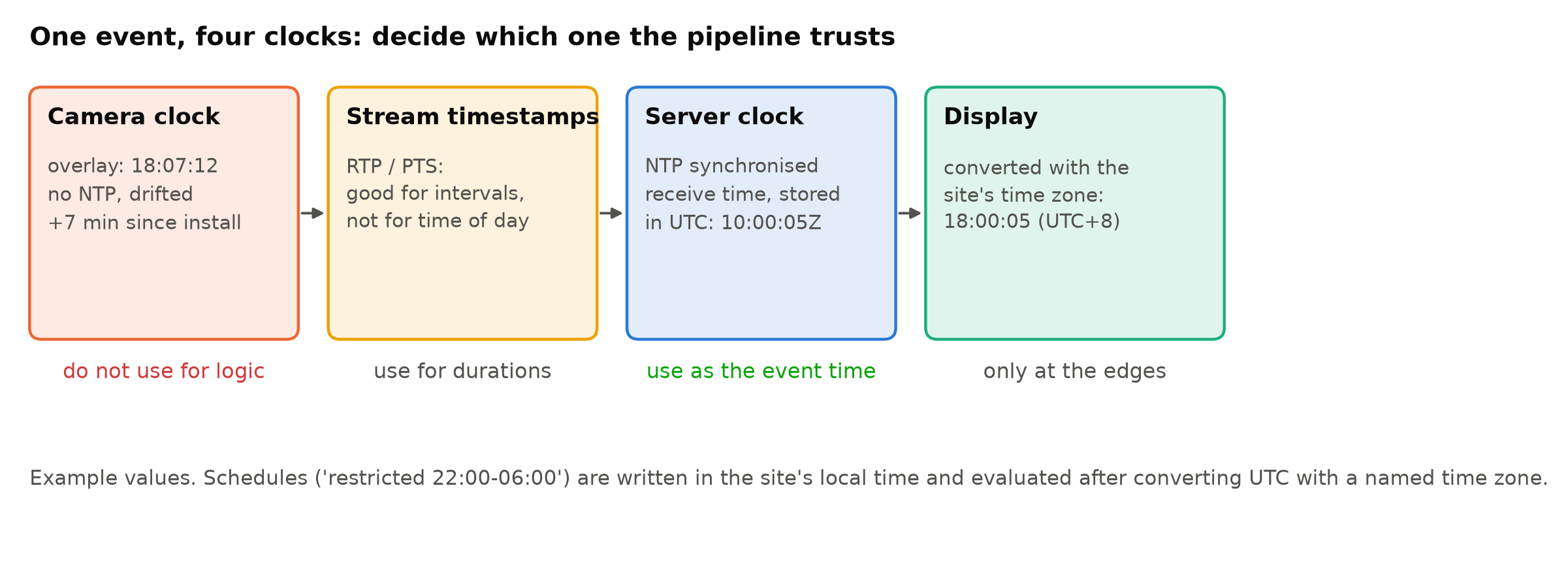
- The camera's clock. It drives the timestamp burned into the image and sometimes metadata. Cameras are often installed without time synchronisation, set to the wrong time zone, or left on factory time. Their clocks drift.
- Stream timestamps. RTP and decoder timestamps measure intervals between frames well. They usually do not tell you the time of day.
- The server or edge device clock. If synchronised with NTP, it is the most trustworthy source of the current time.
- The display time zone. The time a person reads, in the site's local time.
Rule 1: one source of truth, synchronised
Use the analytics machine's clock, synchronised with NTP, as the source of event times. Record the time each frame is received and carry it through the pipeline. Do not trust the camera's overlay or its idea of time for any logic.
Check that synchronisation actually works on every device:
timedatectl status # look for "System clock synchronized: yes"
Watch out for boards without a battery-backed real-time clock, or with no battery fitted. After a power cut they may boot with a wrong time until the network comes up and NTP corrects it, and events logged in that window get wrong timestamps. Make the pipeline wait for time synchronisation at boot, or at least flag events recorded before it.
Synchronise the cameras too, where possible, so the burned-in overlay matches the alert time. When a client compares an alert time with the time on the video, they will believe the video.
Rule 2: store UTC, convert at the edges
Store every timestamp in UTC, with the time zone stated explicitly. Convert to local time only when showing it to a person or when evaluating a rule written in local time.
Local time is not a good storage format. It repeats an hour when daylight saving ends and skips an hour when it begins. Two servers in different regions disagree about it. A cloud server is often set to UTC while the edge device is set to local time, and logs from the two cannot be lined up.
Rule 3: name the time zone, not the offset
A site's time zone is a place, not a number. Write Europe/London or Asia/Singapore, not +00:00 or +08:00. Named zones from the IANA time zone database know about daylight saving rules and their history; fixed offsets do not. A schedule configured as "UTC+1" works all summer in a country that observes daylight saving and is wrong by an hour all winter.
In Python, the standard library handles this:
from datetime import datetime, timezone, time
from zoneinfo import ZoneInfo

SITE_TZ = ZoneInfo("Europe/London")

def in_restricted_hours(event_utc: datetime, start=time(22, 0), end=time(6, 0)) -> bool:
    local = event_utc.astimezone(SITE_TZ).time()
    if start <= end:
        return start <= local < end
    return local >= start or local < end      # window crosses midnight

now = datetime.now(timezone.utc)
print(in_restricted_hours(now))
Note the midnight case. A window from 22:00 to 06:00 is the classic source of "the rule is active all day" or "never active" bugs. Test it explicitly.
Rule 4: decide what happens during DST changes
Where daylight saving applies, some local times happen twice (when clocks go back) and some never happen (when clocks go forward). A schedule starting at 01:30 on the night clocks go forward has no 01:30. Decide what your rules should do, write it down, and test it. Usually the right answer is to evaluate rules on the converted local time of each event, which the code above does, and to avoid starting schedules at times that fall in the transition hour.
Also check daily boundaries. A "daily" count should run from local midnight to local midnight, which is not the same as UTC midnight, and some local days have 23 or 25 hours.
Rule 5: show the time zone
Every time shown to a person should either be in the site's local time with the zone named, or clearly in UTC. "14:00 (Singapore time)" removes ambiguity. Reports that cover sites in several time zones should say which zone each section uses.
Frame timing is a different problem
Event time of day and time between frames are separate problems. Durations, such as dwell time, should be measured with a monotonic clock or stream timestamps, which never jump when NTP adjusts the system clock. Using wall-clock time for durations gives occasional negative or huge durations when the clock is corrected. When the Camera Changes Its Frame Rate at Night covers frame timing.
Test time like any other input
Add tests for time handling to your suite:
- Events just before and after each schedule boundary, including windows across midnight.
- Events on both DST transition days, if the site observes DST.
- A device clock that starts wrong and is corrected.
- Daily report boundaries in local time.
These tests take minutes to write and catch bugs that otherwise surface on two Sundays a year, months after deployment. See Regression Tests for a Vision Pipeline.
Checklist
- NTP running and verified on every analytics device.
- Pipeline waits for time sync at boot, or flags early events.
- Cameras synchronised so overlays match alert times.
- Event times taken from the device clock and stored in UTC.
- Named IANA time zones for every site.
- Schedules evaluated in local time, with midnight-crossing windows tested.
- DST transitions handled and tested where they apply.
- Durations measured with a monotonic clock.
- Times shown to people include the time zone.
Next steps: Designing Alert Rules: Schedules, Cooldowns and Escalation and Metrics and Logging for a Vision Service.