How Many Frames per Second Does Your Analytics Need?
Cameras typically send 15 to 30 frames per second, and the default instinct is to analyse all of them. On a box with many cameras that is often the main reason the hardware is too small. Many use cases work just as well at a fraction of the frame rate, and some do not work at all if you drop too far.
This article shows how to work out the frame rate your analytics actually needs, why it depends on the use case, and how to test the choice on recorded footage.
Start from what must be seen
The question is not "how many frames per second?" but "how many frames do I need of each event, and how long does an event last?" The answer depends on three things.
How long the object is visible
An object crossing the view is visible for the view's width divided by its speed. A person walking at about 1.4 m/s across a 10 m wide view is visible for roughly 7 seconds. A car at 50 km/h crossing a 10 m view is visible for under a second.
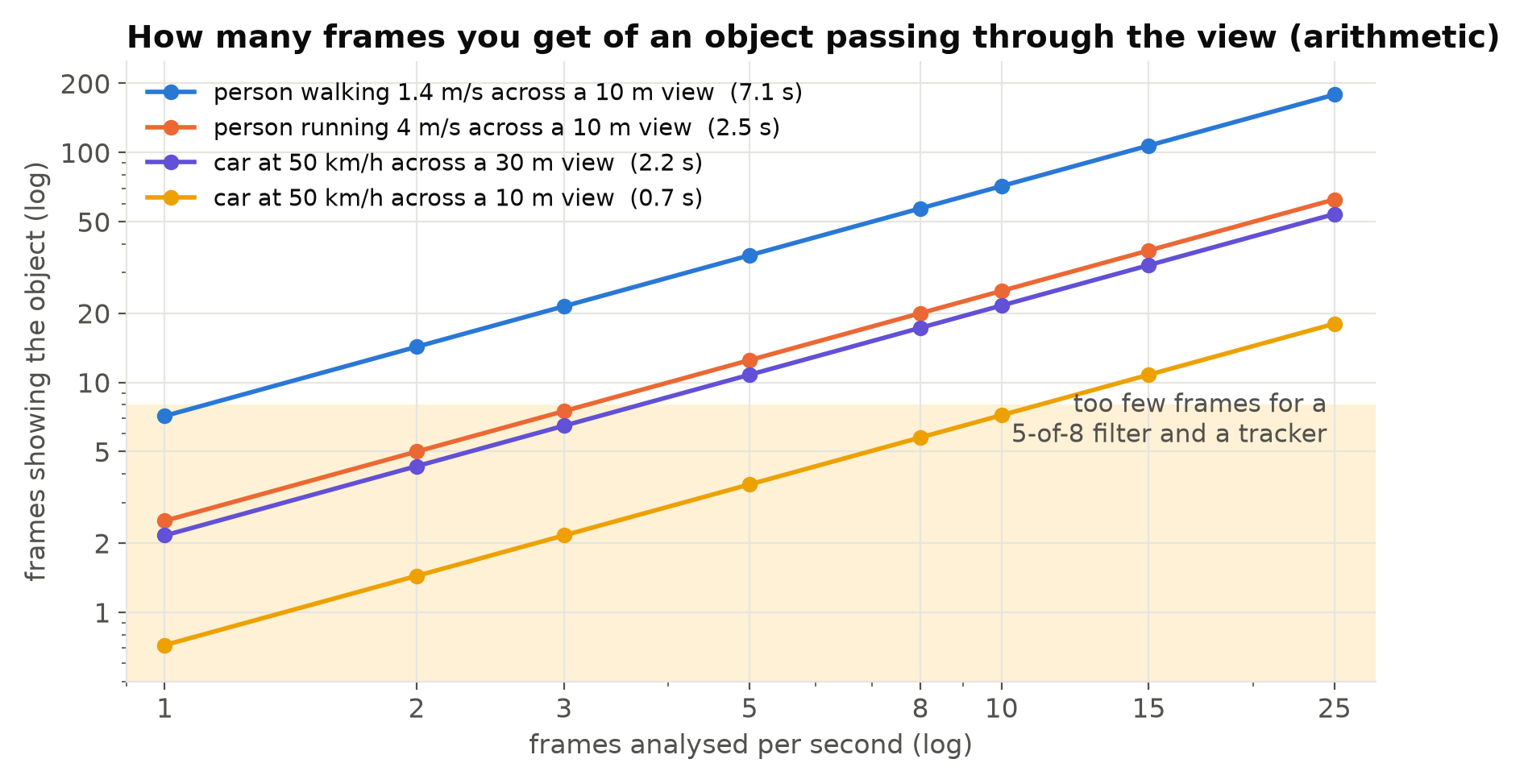
What the pipeline needs per event
Your post-processing determines the minimum number of frames:
- Temporal filters. A "5 of the last 8 frames" rule needs at least 5 detections, and in practice more, because detection is not perfect on every frame.
- Trackers. Trackers match objects between frames by position and overlap. If objects move too far between analysed frames, matching fails and IDs switch. Fast objects in a narrow view need higher rates. See Tracker ID Switches and Double Counting.
- Line crossing. The object must be tracked on both sides of the line. A track that jumps over the line between two frames may still count if the rule checks sides rather than intersections, but a track that breaks near the line will not.
- Dwell rules. These care about seconds, not frames. A person standing in a zone for 30 seconds is well captured at 1 to 2 frames per second.
How fast the response must be
At 2 frames per second, an event can be up to half a second old before it is even analysed, plus the filter's delay. For most alerting this is irrelevant; for safety interlocks it may matter.
Typical ranges
Rough starting points, to be confirmed on your own footage:
| Use case | Starting analysis rate | Why |
|---|---|---|
| Zone presence, dwell time, loitering | 1 to 5 fps | Slow events measured in seconds |
| PPE checks on people in a work area | 2 to 5 fps | People move slowly; detail matters more than rate |
| People counting at a doorway | 5 to 10 fps | Tracker needs consistent IDs through the crossing |
| Vehicle counting on a road | 10 fps or more | Fast objects, short visibility |
| Fast events (falls, collisions near machinery) | 10 fps or more | Short events with little warning |
These are not rules. A wide overview camera where people take 20 seconds to cross supports lower rates than a tight doorway camera.
Sample by time, not by frame count
Pick frames at regular time intervals using timestamps, not "every Nth frame". If the camera changes its frame rate at night, "every 5th frame" changes from 5 to 2.5 analysed frames per second. Time-based sampling keeps the analysis rate stable. See When the Camera Changes Its Frame Rate at Night.
And express all temporal settings in seconds: filter windows, minimum durations, tracker buffers. Then you can change the analysis rate without retuning everything.
Lower analysis rate does not mean lower decode cost
This is the catch. Compressed video frames depend on earlier frames, so a decoder usually has to decode every frame even if you only analyse some of them. If decoding is your bottleneck, analysing fewer frames helps less than you expect.
To save decode work, lower the frame rate at the camera, on the stream you consume. Most IP cameras let you set the frame rate per stream, so the substream can run at the analysis rate while the main stream keeps full rate for recording. Hardware Video Decoding on Edge Devices and Main Stream or Substream cover this.
Test it on recorded footage
The reliable way to choose is to measure:
- Take a replay set with labelled events from your real cameras. See Building a Replay Set of Recorded Footage.
- Run the full pipeline at the camera's native rate and score events: recall, false alerts, delay.
- Re-run at lower analysis rates, for example 10, 5, 3 and 2 fps, with time-based settings unchanged.
- Plot event recall, false alerts per day and median delay against the analysis rate.
- Choose the lowest rate where recall and delay are still acceptable, with a margin.
Look at which events are lost first as the rate falls. They are usually the fastest or shortest ones, and they tell you which cameras need a higher rate than the rest. Different cameras can, and often should, run at different analysis rates.
Measuring Video Analytics by Events, Not Frames describes the scoring.
What you gain
Analysing at 5 fps instead of 25 is a fifth of the inference work. That can mean five times as many cameras on the same box, a smaller model replaced by a larger, more accurate one at the same cost, or a fanless device instead of one with a noisy fan. The saving often matters more than any model optimisation.
Checklist
- Work out how long each target is visible in each camera's view.
- Count the frames your filters and tracker need per event.
- Sample frames by timestamp, not by frame count.
- Express all temporal settings in seconds.
- Lower camera stream frame rates if decoding is the bottleneck.
- Test several analysis rates on a labelled replay set.
- Set the rate per camera where views differ.
Next steps: Scaling Video Analytics to Hundreds of Camera Streams and Sharing One Accelerator Across Many Streams.