Hardware Video Decoding: Why Decode Is Often the Real Bottleneck
You add an accelerator, the model runs in a few milliseconds, and the box still handles only a handful of cameras. The CPU sits near 100% while the accelerator idles. The model was never the bottleneck. Video decoding was.
This article explains why decoding is so expensive, how to tell whether it limits you, and how to move it to the hardware decoders that most edge platforms include.
Why decoding costs so much
Cameras send compressed video, usually H.264 or H.265. Before any analysis, every frame must be decoded back into raw pixels, at the full resolution the camera sends, and usually converted from the decoder's YUV format to BGR or RGB. Only then is it resized for the model.
So the decoder handles far more pixels than the model ever sees.
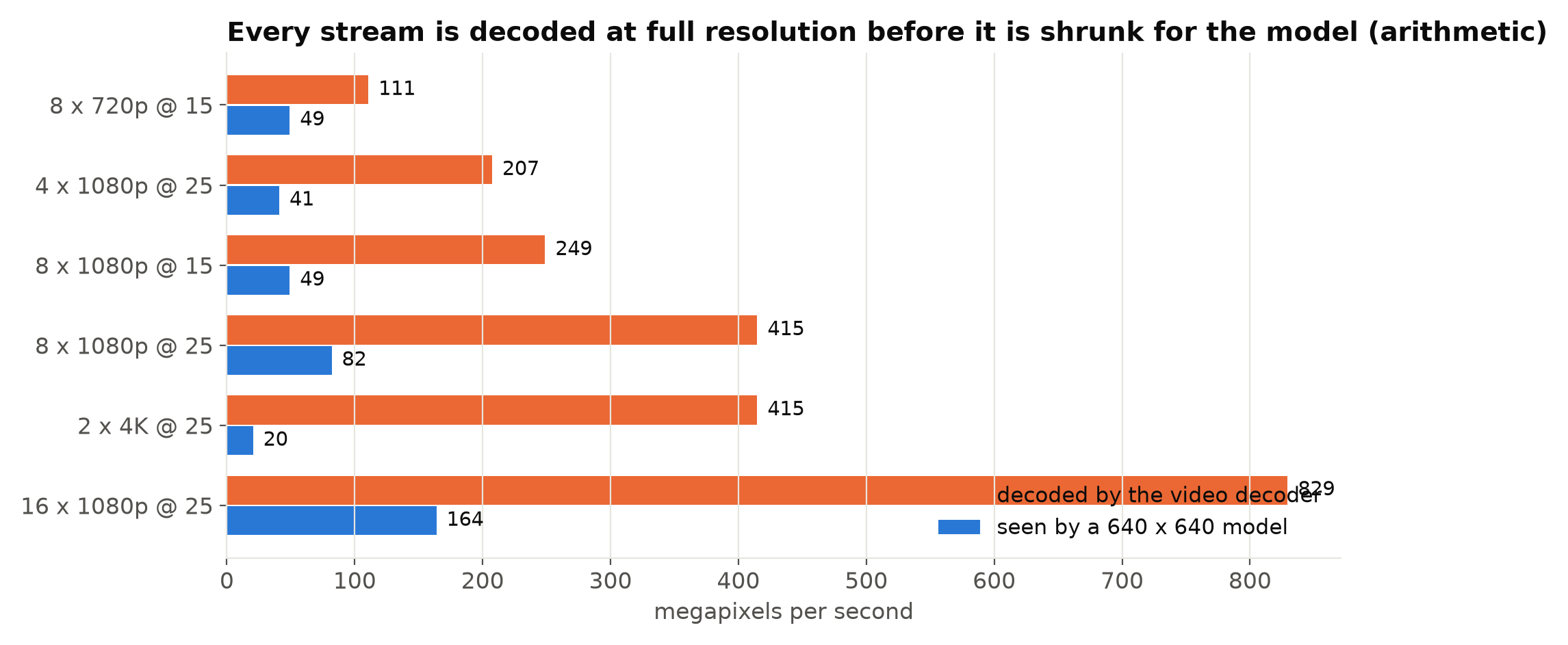
Decoding H.264 or H.265 in software is real work for a CPU, especially a small ARM CPU, and it grows with resolution, frame rate and the number of streams. Colour conversion and resizing on the CPU add more. Doing all of this in Python-adjacent code with extra copies adds more again.
Check whether decode limits you
Measure before changing anything:
- Run only the capture and decode part of the pipeline, with no inference, for all cameras. Note CPU use and frames per second per stream.
- Run inference only, on frames already in memory. Note its throughput.
- Compare. If decoding alone uses most of the CPU, or delivers fewer frames than the cameras send, decode is your limit.
Also watch the per-stage timings described in Measuring FPS and Latency Correctly. A pipeline where pre-processing and decode take longer than the model is common.
Hardware decoders on common platforms
Most edge platforms have dedicated video decoding hardware, separate from the CPU and the AI accelerator. What is available differs:
- NVIDIA Jetson boards have hardware video decoders (NVDEC). They are used through NVIDIA's GStreamer elements, such as
nvv4l2decoder, or through DeepStream. Check the decoder capability of your specific module in NVIDIA's documentation; some modules lack a hardware encoder but still decode in hardware. - NVIDIA GPUs in servers have NVDEC too, accessible through FFmpeg, GStreamer, DeepStream, or libraries built on them.
- Raspberry Pi 5 has a hardware decoder for H.265 (HEVC) but not for H.264, which is decoded on the CPU. If your cameras can send H.265, that matters a great deal on a Pi 5.
- Intel CPUs with integrated graphics have Quick Sync video decoding, usable through VA-API or oneVPL with FFmpeg or GStreamer.
Platforms and software change, so check the current documentation for your exact board and OS image before planning around a decoder.
Using the hardware decoder
The main obstacle is that the default paths often do not use it. OpenCV's VideoCapture with the FFmpeg backend decodes in software unless hardware acceleration is configured and supported by your OpenCV build. Recent OpenCV versions have a CAP_PROP_HW_ACCELERATION property for this; whether it works depends on how OpenCV was built.
The more reliable route on many platforms is GStreamer. On a Jetson, a pipeline that decodes an RTSP H.264 stream in hardware and hands BGR frames to OpenCV looks roughly like this:
pipeline = (
    f"rtspsrc location={url} latency=200 ! rtph264depay ! h264parse ! "
    "nvv4l2decoder ! nvvidconv ! video/x-raw,format=BGRx,width=1280,height=720 ! "
    "videoconvert ! video/x-raw,format=BGR ! appsink drop=true max-buffers=1"
)
cap = cv2.VideoCapture(pipeline, cv2.CAP_GSTREAMER)
Note three things. The resize to 1280 × 720 happens in nvvidconv, on the hardware, before frames reach the CPU. drop=true max-buffers=1 keeps only the latest frame, so latency does not build up. And OpenCV must be built with GStreamer support; check cv2.getBuildInformation(). Element names and options vary between platform software versions, so test the pipeline with gst-launch-1.0 first. GStreamer, FFmpeg or OpenCV for Video Pipelines compares the approaches.
Keep frames where they are
Hardware decoders put frames in their own memory. Copying each frame to the CPU, converting it, then copying it to the GPU for inference wastes much of the gain. Frameworks such as DeepStream keep frames in GPU memory from decode through inference for this reason. If you build your own pipeline, minimise copies and conversions, and do the resize as early as possible, ideally in the decoder's own scaler.
Reduce the work before decoding
Often the cheapest decode is the one you do not do:
- Use the substream. Most IP cameras offer a second, lower-resolution stream. If the model runs at 640, a 720p or even 640 × 360 substream may be enough, at a fraction of the decode cost. See Main Stream or Substream.
- Lower the camera's frame rate. If you analyse 5 frames per second, receiving 25 means decoding 25. Most decoders cannot skip frames freely, because compressed frames depend on earlier ones. Setting the camera's stream to the rate you need saves decode work. See How Many Frames per Second Does Your Analytics Need?.
- Choose the codec your hardware decodes. On a Pi 5, H.265 is decoded in hardware and H.264 is not. Elsewhere it may be the other way, or both.
Hardware decoders have limits too
A hardware decoder has a maximum throughput, often specified as a number of streams at a resolution and frame rate, and a maximum number of simultaneous sessions. Both are in the platform's documentation. Plan within them with a margin, and test with the real number of streams, since running many streams at once is different from one stream at a high rate.
Checklist
- Measure decode cost separately from inference.
- Find out which codecs your platform decodes in hardware.
- Check that your capture path actually uses the hardware decoder.
- Resize in hardware, before frames reach the CPU.
- Keep only the latest frame in capture buffers.
- Minimise copies between decoder, CPU and accelerator.
- Use substreams and lower camera frame rates where possible.
- Stay within the decoder's stream and session limits.
Next steps: Reading RTSP Streams with OpenCV and FFmpeg and Memory Budgets on Small Boards.