Input Resolution or Model Size: Which to Increase for Small Objects
A detector misses people at the far end of a car park. You have compute to spare, and two obvious ways to spend it: move from the nano model to the small or medium one, or raise the input size from 640 to 960 or 1280. Both cost speed. They do not fix the same problem.
This article explains what each change does, why input size is usually the first thing to try for small objects, and how to test both properly.
What the model actually sees
Before the network sees a frame, the frame is resized to the input size. A 1920 × 1080 frame resized to a 640-pixel input is shrunk by a factor of three. A person who is 60 pixels tall in the camera image is about 20 pixels tall at the model's input.
At 20 pixels, a person is a smudge with a head. Details that separate a person from a post, or a helmet from a bare head, are a few pixels wide or have disappeared entirely. A bigger model cannot recover detail that was removed before the network saw the image. It can only make better guesses from the same smudge.
Raising the input size puts the pixels back. At a 1280 input, the same frame is shrunk by 1.5 instead of 3, and the person is 40 pixels tall.
The compute cost of each
The cost of the convolutional layers that make up most of a detector grows roughly with the number of input pixels, so with the square of the input side.
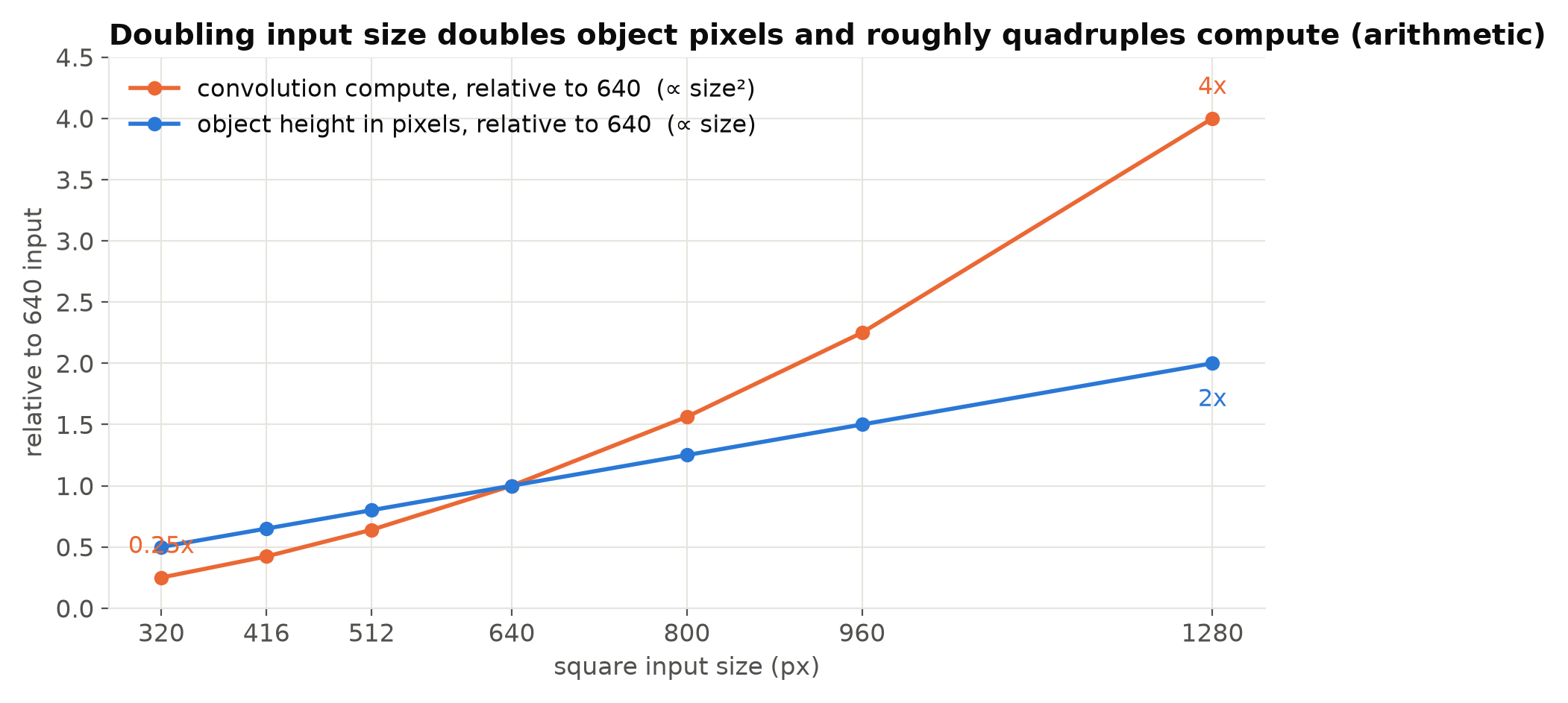
Model size scales differently. In the Ultralytics YOLOv8 family, for example, the published compute at 640 input grows by roughly three times from nano to small, and roughly three times again from small to medium. So, very roughly:
- 640 → 960 input: about 2.25 times the compute.
- 640 → 1280 input: about 4 times.
- nano → small at the same input: about 3 times.
These ratios describe the network's arithmetic, not your frame rate. Actual speed depends on how well your hardware and runtime handle each case, so measure on the target device; see Measuring FPS and Latency Correctly.
When input size helps
Raise the input size first when:
- The missed objects are small at the current input. Measure this. Take the misses from your test set and look at their size in pixels after resizing to the model input. If most of them are under a few dozen pixels, resolution is the likely bottleneck.
- Fine detail decides the class. Helmets, vests, gloves, phone in hand: these depend on a few pixels that resizing destroys.
- The camera has the pixels to give. A 4K camera resized to 640 throws away most of its detail; a 640 × 360 substream has nothing more to offer at a larger input.
Train at the size you will run. A model trained at 640 and run at 1280 sees objects at twice the scale it learned, and often does worse than you expect. Fine-tune at the new size; see Fine-Tuning YOLO.
When model size helps
A bigger model helps when the objects are already visible but the decisions are hard:
- Confusable classes, such as two vehicle types or uniforms that differ in small ways, when the objects are reasonably large.
- Cluttered scenes, where telling objects from the background needs more context.
- Many classes, where a small model lacks the capacity to learn them all well.
- Large variation in appearance, pose or lighting across sites.
If your misses are large, clear objects that the model gets wrong, resolution will not help. Capacity might. See Nano, Small, Medium: How to Choose a YOLO Model Size.
Cheaper than both
Before paying for either, check the options that add pixels without adding much compute everywhere:
- Crop to the region of interest. If the important area is a part of the frame, crop it before resizing. The objects grow without any extra compute.
- Tile the frame. Split a large frame into overlapping tiles and run the model on each. This costs more compute but only where you choose, and works with the model you have. Merge the detections with NMS across tiles. Class Imbalance and Small Objects covers tiling.
- Use a rectangular input. Many pipelines letterbox a 16:9 frame into a square input, wasting a quarter of the pixels on padding. Some runtimes and export paths accept a rectangular input such as 640 × 384; check that your toolchain supports it.
- Change the camera. A narrower lens or a closer camera often beats any software change. See When the Customer's Footage Doesn't Match the Demo.
How to decide with data
- Collect the misses at your operating threshold from a test set that represents the deployment.
- Measure their size at the current model input. Plot the distribution.
- If most misses are small, train and test the same model at a larger input, for example 960.
- If most misses are reasonably large, train and test the next model size at the current input.
- Compare both at your operating point, per class and by object size, and measure the speed of each on the target device.
- Repeat with a few seeds if the differences are small; see Comparing Two Detectors Fairly.
Sometimes the answer is both: a small model at a larger input. Nano at 1280 and small at 640 cost similar compute, and for small-object problems the first often wins. That is something to test, not assume.
Watch the side effects
A larger input also changes things you might not expect:
- Memory for activations grows with input pixels. See Memory Budgets on Small Boards.
- Pre-processing takes longer, because resizing and normalising more pixels costs CPU time.
- Confidence scores shift, so re-tune thresholds after the change. See Confidence Thresholds.
- Training needs more GPU memory, so batch sizes fall.
Checklist
- Measure the size of missed objects at the current model input.
- Small misses: try a larger input first, trained at that size.
- Large, clear misses: try a larger model.
- Consider cropping, tiling, rectangular inputs and camera changes.
- Compare at the operating point, per class and by size.
- Measure speed on the target device.
- Re-tune thresholds after any change.
Next steps: Class Imbalance and Small Objects and Preprocessing Mismatches That Silently Cost Accuracy.