TensorRT for YOLO: When and How to Use It
TensorRT is NVIDIA's inference optimiser and runtime. You give it a trained network, usually through ONNX, and it builds an optimised "engine" for your specific GPU. For NVIDIA hardware, including Jetson boards, it is one of the most effective ways to speed up a detector. It also adds some friction. This article explains what it does, when it is worth using and how to adopt it without surprises.
What TensorRT actually does
TensorRT takes a network graph and applies several optimisations:
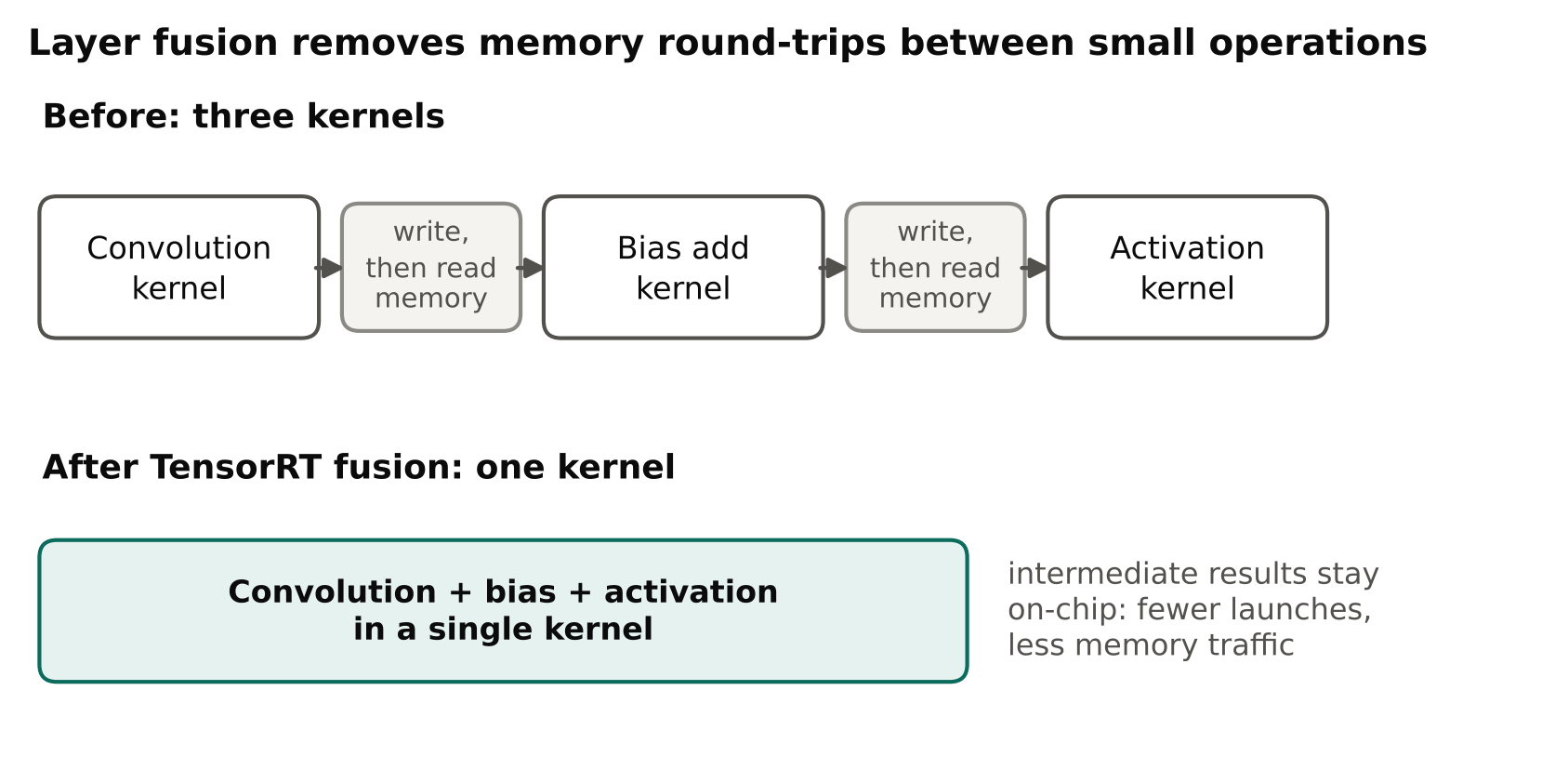
- Layer fusion. Operations that run one after another, such as convolution, bias and activation, can be merged into one kernel. This reduces memory traffic.
- Kernel selection. For each layer, it tests candidate GPU kernels and picks fast ones for your device. This is why building an engine can take a while.
- Reduced precision. It can run layers in FP16 or INT8 instead of FP32, when your hardware supports it, which usually speeds up inference and cuts memory use.
- Memory planning. It reuses buffers to reduce memory use.
None of this changes your training. It is a deployment step. The result is a binary engine file that is fast but tied to its environment.
When it is worth it
TensorRT is a good idea when:
- You deploy on NVIDIA GPUs, especially Jetson devices, where GPU time is precious.
- You run many streams or need low latency.
- Your PyTorch inference is the bottleneck, as shown by profiling.
It is less useful when:
- Your bottleneck is video decoding, network, or Python code around the model. A faster engine will not fix a slow pipeline.
- You deploy on non-NVIDIA hardware. TensorRT will not run there.
- You are still changing models every day. Engine builds add time to each iteration.
Always profile first. If model inference is a small part of the total time, optimising it gives little gain. The article on measuring FPS and latency correctly shows how to split end-to-end time into stages.
The safe workflow
A reliable path is:
- Train and validate the PyTorch model.
- Export to ONNX and confirm the ONNX output matches (see exporting YOLO to ONNX).
- Build a TensorRT engine on the target device or a matching environment.
- Validate the engine's accuracy on your validation set.
- Benchmark with realistic input, after warm-up.
- Deploy with the exact same library versions you built with.
Skipping step 4 is the most common mistake. Faster but less accurate is not a win.
Building an engine with Ultralytics
Ultralytics wraps the process:
from ultralytics import YOLO

model = YOLO("best.pt")
model.export(format="engine", half=True, imgsz=640)
This produces a .engine file you can load again with YOLO("best.engine"). The export needs TensorRT installed in your environment, and it needs an NVIDIA GPU. On Jetson, TensorRT comes with JetPack, so you usually do not install it separately.
Other export arguments exist, such as int8=True with calibration data, dynamic, batch and workspace. Names and defaults can change between versions, so check the current Ultralytics export documentation instead of copying flags from old posts.
You can also use NVIDIA's trtexec command-line tool, which ships with TensorRT, to build an engine directly from an ONNX file. It is useful when you want fine control or you work outside Ultralytics.
Precision modes
| Mode | Speed | Accuracy risk | Notes |
|---|---|---|---|
| FP32 | Baseline | None | Largest and slowest |
| FP16 | Usually faster | Low for most detectors | A sensible default on modern NVIDIA GPUs |
| INT8 | Often fastest | Higher, must be checked | Needs calibration data |
FP16 is the easy win. Most detectors lose very little accuracy, and the speed and memory benefit is usually clear. Still, verify on your own data.
INT8 needs more care. TensorRT must learn the value ranges of activations, which it does using a calibration dataset: a few hundred representative images is a common starting point, but check the guidance for your tool. If the calibration images do not look like production images, accuracy can drop in ways that a headline metric hides. The details are in INT8 quantization for detectors.
Portability limits
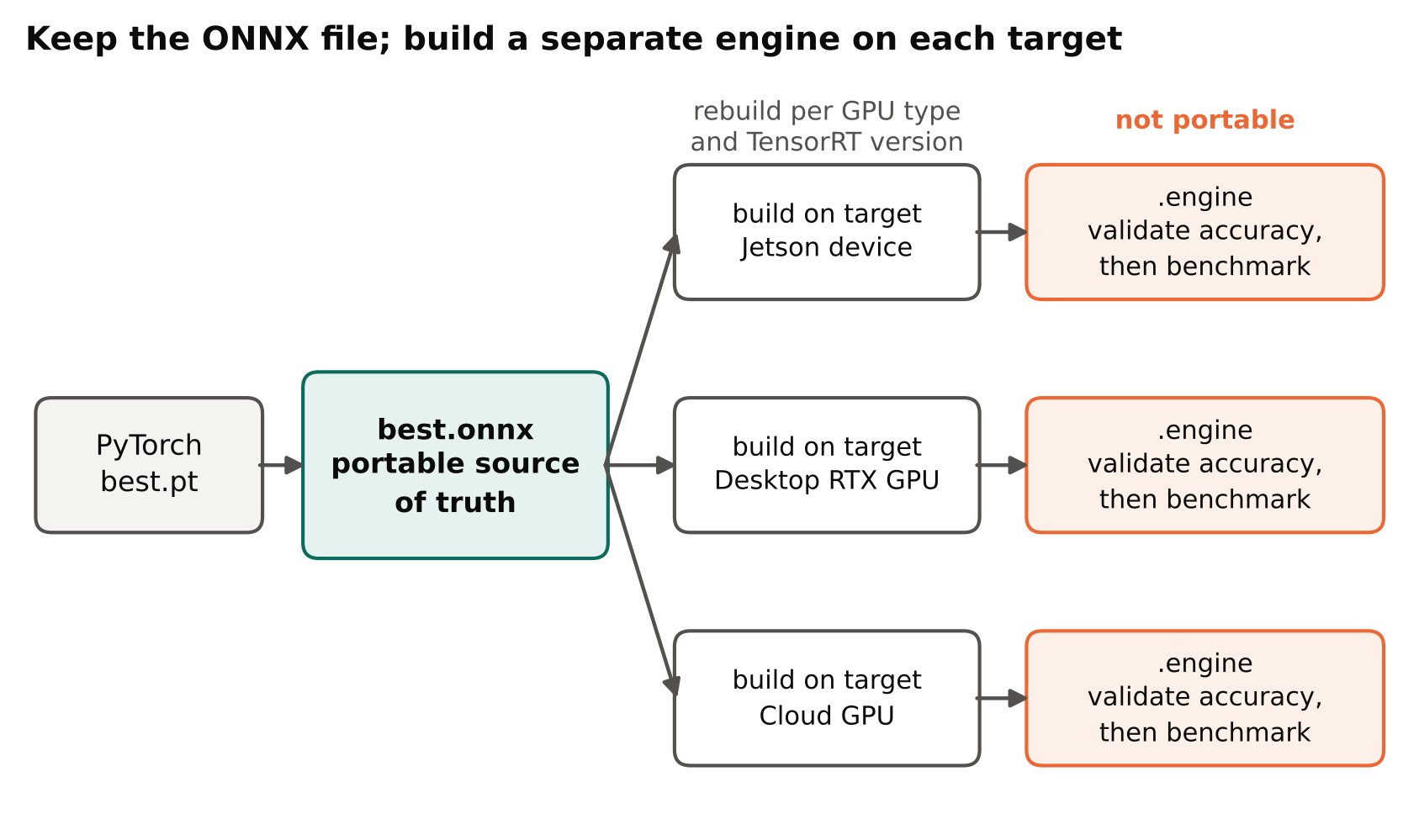
This is the part that surprises people. A TensorRT engine is not a portable model file. It is tied to:
- The GPU architecture. An engine built for one GPU model may not run on another.
- The TensorRT version. Engines usually must be rebuilt after upgrading TensorRT.
- Often the CUDA and driver environment as well.
So keep the ONNX file as your portable source of truth, and treat the engine as a build artefact. Rebuild it on each target device type, ideally as part of your deployment script or container build. Store the ONNX, record the TensorRT version and note the build options. If you deploy with containers, see Dockerize a computer vision app for how to keep the environment reproducible.
Input shape and batch size
Engines are optimised for specific input shapes. A fixed shape is the simplest and often the fastest. If you need several shapes or batch sizes, you can use dynamic shapes with optimisation profiles, but this adds complexity. For many camera systems, a fixed input size and a small fixed batch is enough.
Batching can raise throughput when you process many streams, but it also raises latency, because frames wait for a batch to fill. Decide which matters for your use case: total streams per device, or time from frame to alert.
Pre- and post-processing still matter
The engine only covers the network. Resizing, colour conversion, NMS and tracking happen elsewhere. If those run slowly on the CPU in Python, the end-to-end speed will not match the engine's speed. Options include optimising NumPy code, using GPU-based pre-processing, or including NMS in the engine, which some export paths support. Make changes only after profiling, because each one adds complexity.
Common problems
- Engine fails to load after an update. Version mismatch. Rebuild the engine.
- Accuracy drops after INT8. Poor calibration data or sensitive layers. Compare per-class metrics, not only overall mAP, and try FP16 instead.
- No speed-up. The bottleneck is elsewhere, or the GPU is sharing time with other jobs. Profile the full pipeline.
- Build takes a long time on a small device. This is normal. Build once, save the engine and reuse it.
- Different results than PyTorch. Small differences are normal; large ones suggest a pre-processing mismatch or a conversion issue.
- Memory errors during build. Reduce the workspace size or close other processes using the GPU.
Licence note
Ultralytics YOLO models are AGPL-3.0, with a commercial licence available from Ultralytics. Converting the model to TensorRT does not change the licence of the underlying weights and code. Check the current licence terms for your product.
Key points
- TensorRT optimises a trained network for a specific NVIDIA GPU; it does not change training.
- Profile first, because model time may not be your bottleneck.
- Go via ONNX, build the engine on the target environment and keep ONNX as the source.
- FP16 is a safe first step; INT8 needs representative calibration data and careful checks.
- Engines are tied to the GPU and TensorRT version, so automate rebuilds.
- Validate accuracy after conversion, not only speed.
Next steps
Read INT8 Quantization for Detectors for the next level of optimisation, and Raspberry Pi vs Jetson Orin Nano if you are still choosing hardware.