Cloud GPUs for Model Training: How to Choose
Training a detector on a laptop CPU is painful, and a free notebook session eventually runs out of hours or disk. At some point most computer vision work needs a real GPU. You can buy one or rent one. This article helps you choose between the options and, more importantly, avoid paying for idle hardware. Providers, GPU models and prices change often, so I do not quote any prices here. Check each provider's current pricing page before deciding.
First decide whether you need a cloud GPU
Work through these questions:
- How often do you train? A few short runs a month rent well. Daily long runs for a year may justify owning a card.
- How big is your job? Fine-tuning a small or medium detector on tens of thousands of images is a modest job. Training large models from scratch on huge datasets is not.
- Do you need it right now, or occasionally? Renting gives access to larger GPUs than you would buy, for short bursts.
- Can your data leave your machine? Some customer data cannot be uploaded to a third-party cloud. Check contracts before you copy anything.
If you are still experimenting, a free tier may be enough to start; see Training on Google Colab: Limits and Workarounds. Move to a rented GPU when session limits, disk or interruptions slow you down.
What actually matters in a GPU
For object detection training, the main specifications are:
- GPU memory (VRAM). This limits your batch size and input resolution. Running out of memory is the most common failure. Larger models and higher resolution need more. You can reduce memory with a smaller batch, a smaller image size, or mixed precision training.
- Compute generation. Newer architectures support faster mixed precision and are generally faster at the same memory size. Older cards can still train well, just more slowly.
- Memory bandwidth and CPU/data loading. A fast GPU waiting for a slow CPU or slow disk is wasted money. Data loading uses CPU cores for decoding and augmentation, so check how many CPU cores and how much RAM come with the instance.
- Multi-GPU. Many vision jobs fit on one GPU. Multi-GPU training adds complexity and is worth it only when one GPU is too slow for the schedule you need.
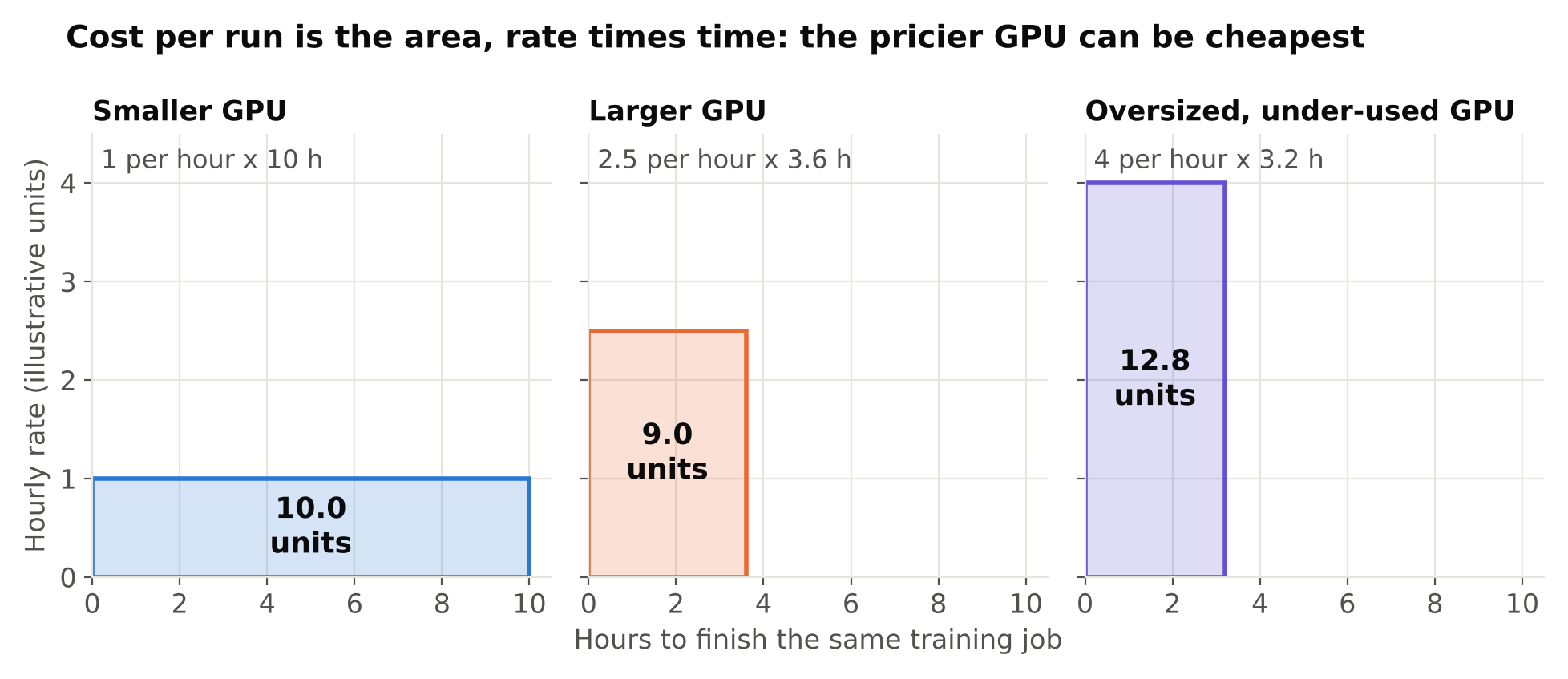
A bigger GPU costs more per hour but may finish sooner, so total cost per run can be similar or even lower. The only way to know is to time a short run on each candidate. Do not assume. A quick test of one or two epochs gives you seconds per epoch to compare.
Types of cloud GPU services
| Type | How you pay | Good for | Watch out for |
|---|---|---|---|
| Large cloud providers (virtual machines) | Per hour or per second, with reserved discounts | Production workflows, integration with other services | Quotas on GPUs, many billing line items, egress charges |
| GPU-focused rental marketplaces and specialist clouds | Per hour, often simple pricing | Cheap experiments, many GPU models | Variable reliability, differences in host quality, availability |
| Notebook platforms with paid tiers | Subscription or credits | Learning, small experiments | Session limits, disk limits, less control |
| Spot or preemptible instances | Discounted, can be reclaimed | Fault-tolerant jobs with checkpoints | Interruptions can kill unsaved runs |
| Serverless or job-based GPU | Per second of use | Batch jobs, pipelines | Cold starts, packaging effort |
You can compare current options through a cloud GPU rental service. Look at the provider's terms for data handling, region, and what happens when your instance is stopped.
The cost model: what you really pay for
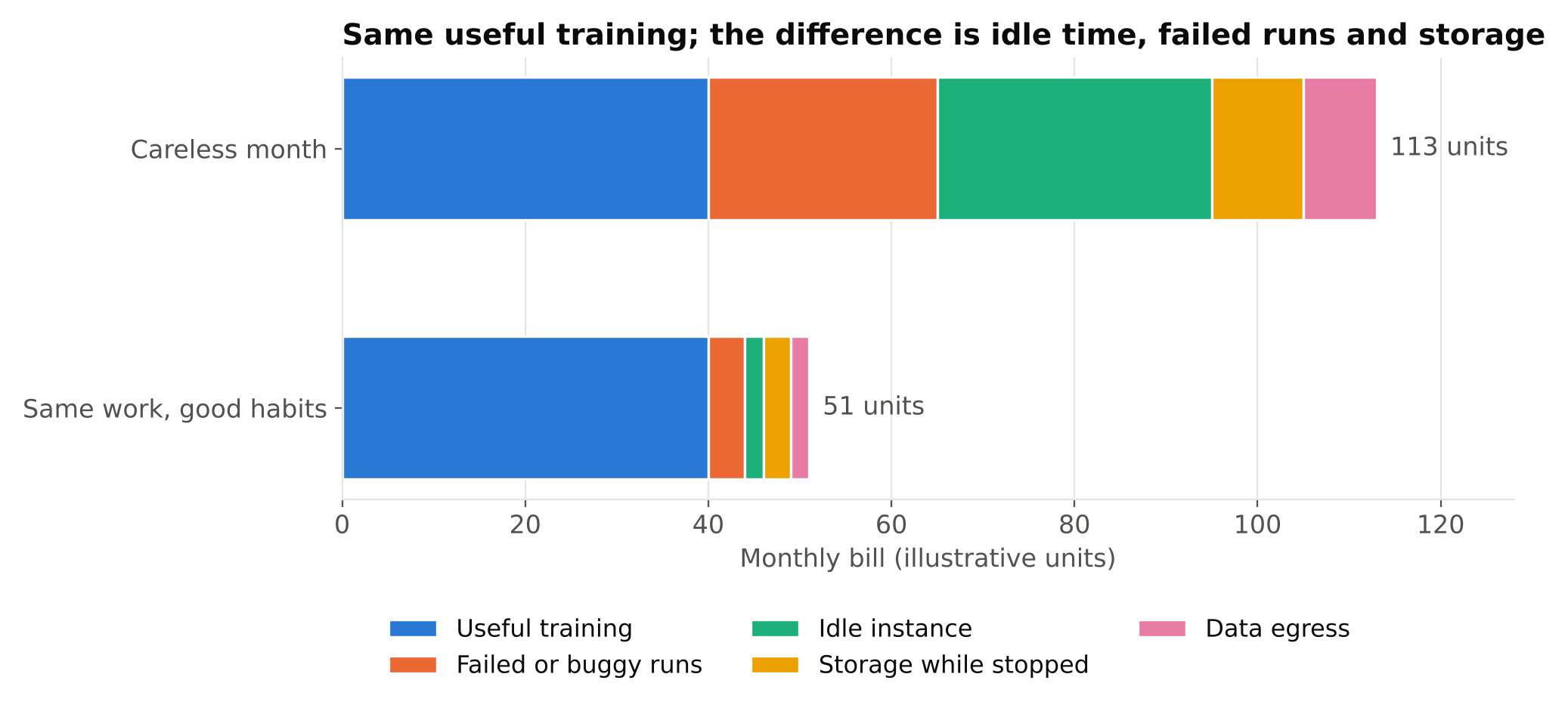
The hourly GPU rate is only part of the bill. Look for:
- Storage. Persistent disks are often billed while the instance is stopped. A forgotten large volume keeps costing money.
- Data transfer. Uploading is usually free, but downloading data out (egress) can be charged on some providers. Pulling large datasets and weights repeatedly adds up.
- Idle time. The biggest cost leak. A GPU instance left running overnight after training finished still bills.
- Failed runs. Hours spent on a run with a bug in the data config are pure waste.
- Minimum commitments or billing granularity. Some services bill by the hour, others by the second.
Habits that save money
- Debug on a tiny subset first. Run a few hundred images for a couple of epochs on a cheap machine or locally. Verify that labels load, classes are right and metrics look sane before renting a big GPU. See Train YOLO on a Custom Dataset: A Step-by-Step Guide.
- Prepare data before you rent. Clean labels, split by video or camera, and write the config on your own machine. Reading the guidance on Train/Validation Split for Video Frames: Avoid Data Leakage saves a re-run caused by a bad split.
- Automate shutdown. End the training script with a command that stops or destroys the instance, or set an auto-stop on idle. Set a budget alert on your account.
- Checkpoint often and save outside the instance. Write weights to persistent storage or object storage regularly. Ultralytics saves
last.ptandbest.ptin the run directory, and you can resume an interrupted run with the resume option. Copy them off the machine regularly if the instance is disposable. - Use spot instances only with checkpoints. The discount is attractive, but only if an interruption costs you minutes, not the whole run.
- Use mixed precision. It is commonly enabled by default in modern training tools and reduces memory and time on supporting GPUs.
- Pick the right size. Do not rent the largest GPU for a small model; your batch will not use it.
- Track experiments. If you cannot tell which run produced which weights, you will repeat work. See Experiment Tracking: TensorBoard, Weights & Biases and MLflow.
Setting up quickly and reproducibly
Time spent installing drivers is billed time. Prefer images that come with the NVIDIA driver, CUDA and PyTorch preinstalled, or use a container image that you have tested. Match your PyTorch build to the CUDA version available, which is covered in Setting Up a Clean Python Environment for Computer Vision. A short setup script that you run on every new machine (clone repo, install pinned requirements, download dataset, start training) makes instances disposable.
Keep the dataset where it can be fetched quickly: object storage in the same region as the instance usually transfers faster, and avoids egress charges within the same provider. Training from many small image files on a slow network disk can leave the GPU waiting, so copy the dataset to local instance disk first if the provider offers fast local storage.
Reliability and security
Cheaper marketplaces can vary in uptime and in how well hosts are isolated. For work involving client data, check where the machine is located, who operates it, and what the terms say about data. Use encrypted connections, do not leave credentials in images or notebooks, and delete the data and the disk when finished. If the dataset contains people, privacy obligations still apply in the cloud; see Privacy and Ethics in Camera Analytics.
Renting versus buying
If you train often and have a place to run a machine, a local card may pay for itself over time, and it removes upload and transfer friction. Consider the full cost: the card, a suitable power supply and cooling, electricity, and the time you spend on maintenance. A NVIDIA RTX graphics card with enough VRAM suits regular experiments, and you can still rent a larger cloud GPU for occasional big jobs. A mixed approach, with local debugging and cloud training, is common and works well.
Compare by estimating your own hours of training per month at the current hourly rental rate against the purchase cost and running costs. Use your real numbers and the current prices.
Checklist
- Decide whether renting fits your usage pattern and data restrictions.
- Choose by VRAM first, then speed; time a short run on each candidate.
- Account for storage, egress and idle time, not just the hourly rate.
- Debug locally on a small subset before renting.
- Automate shutdown and set a budget alert.
- Checkpoint to persistent storage; use spot instances only with checkpoints.
- Script the setup so any instance can be recreated.
- Delete data and disks when finished.
Next steps: learn the workflow in Train YOLO on a Custom Dataset: A Step-by-Step Guide, and start with free resources via Training on Google Colab: Limits and Workarounds.