Training on Google Colab: Limits and Workarounds
Google Colab is the easiest way to get a GPU for a first training run. You open a notebook, pick a GPU runtime, and start. For learning, small datasets and quick experiments, that is often enough. The problems start when you treat it like a machine you own. It is not. It is a temporary session, and anything you do not save somewhere else can disappear.
This article covers what Colab is good for, where it limits you, and a few habits that stop you from losing work.
What the free tier is good for
Colab works well for:
- Learning. Following a tutorial, training a small detector once, seeing what the output folders look like.
- Small datasets. A few hundred to a few thousand images, with a nano or small model, trains in a reasonable time on a modest GPU.
- Quick checks. Does the dataset load? Does the loss go down? Does a different augmentation setting change anything? These questions need short runs.
- Sharing. A notebook is easy to send to a colleague or a client. They can run it without installing anything.
It works badly for long jobs, large datasets, anything that must finish on a deadline, and anything you need to repeat exactly.
The limits you will hit
The exact numbers change over time and depend on your plan, so check the current Colab documentation rather than trusting a blog post. The behaviours, though, are stable enough to plan for.
| Limit | What it means in practice |
|---|---|
| GPU is not guaranteed | You may get a different GPU model from one session to the next, or none at all at busy times. |
| Session time cap | A runtime stops after a maximum number of hours, even if your job is still running. |
| Idle timeout | If the browser tab is closed or the notebook is idle, the runtime can be disconnected. |
| Temporary disk | Files in the runtime's local storage are deleted when the session ends. |
| Limited RAM and disk | Large datasets and big batch sizes can hit memory or disk limits. |
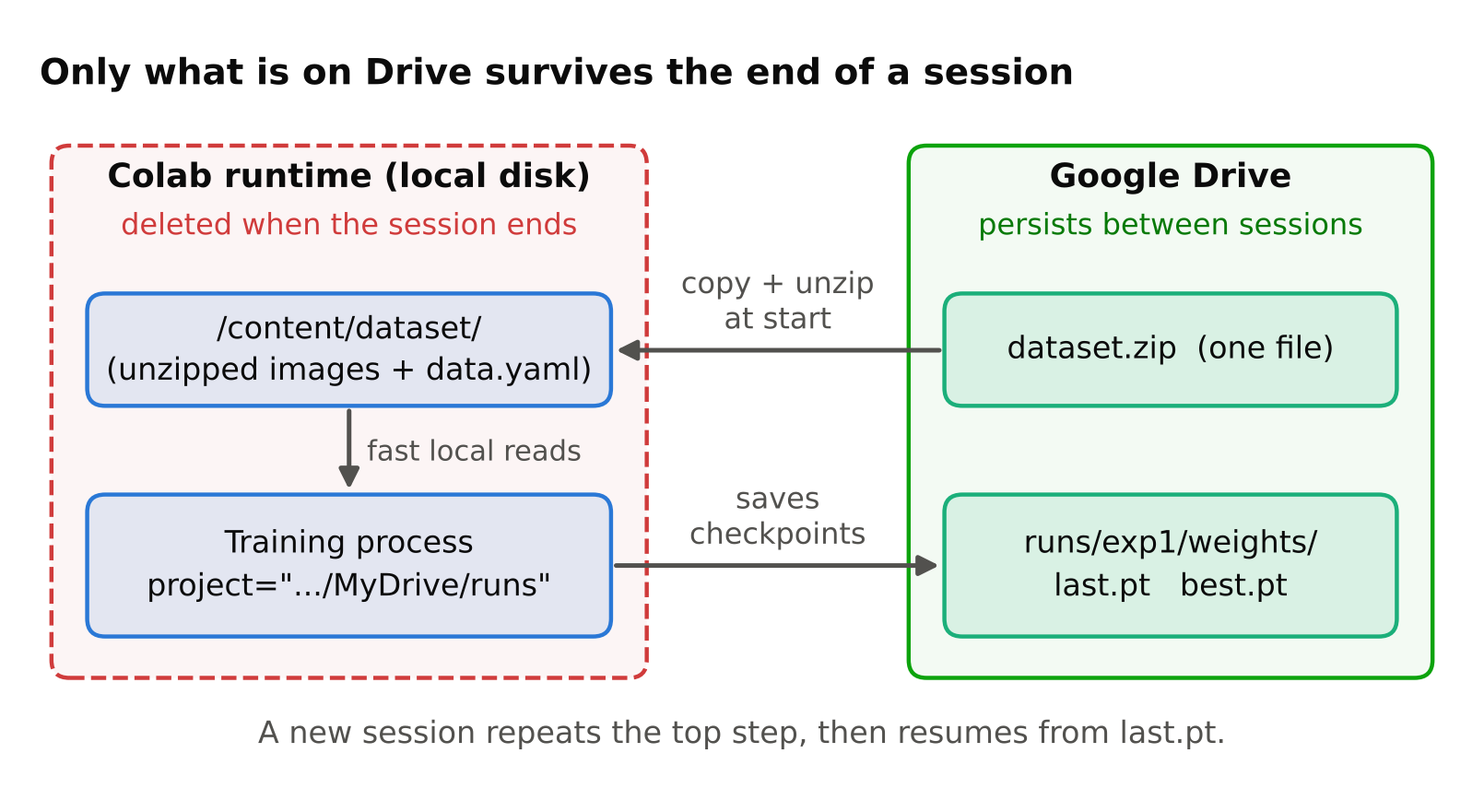
The most important line is the fourth. Your trained weights, logs and even your dataset are gone if they live only on the local disk of a session that ends.
Habit 1: save everything outside the runtime
The simplest fix is to mount Google Drive and write training output there.
from google.colab import drive
drive.mount('/content/drive')
Then point Ultralytics at a folder on Drive using the project and name arguments:
from ultralytics import YOLO

model = YOLO("yolov8n.pt")
model.train(
    data="/content/dataset/data.yaml",
    epochs=100,
    imgsz=640,
    project="/content/drive/MyDrive/runs",
    name="exp1",
)
Ultralytics writes last.pt and best.pt into the weights folder of the run. Because that folder is on Drive, the files survive a disconnect. If you are not sure which version of the library you have, run pip show ultralytics and check the documentation for that version.
Writing many small files to Drive during training can be slow. A common compromise is to train on the local disk and copy the run folder to Drive at the end, or periodically from a second cell. If you do that, you must remember to copy before the session ends, so the Drive-first approach is safer for long runs.
Habit 2: keep the dataset as one archive
Copying thousands of small image files from Drive into the runtime is slow. Copying one zip file and unzipping it locally is much faster.
- Keep your dataset as a single
.zipon Drive. - At the start of each session, copy it to
/contentand unzip it there. - Edit
data.yamlso the paths point to the unzipped location.
Do this in the first cells of the notebook so a fresh session is ready in a minute or two. Training from the local copy is also faster than reading images from Drive on every epoch.
Habit 3: make runs resumable
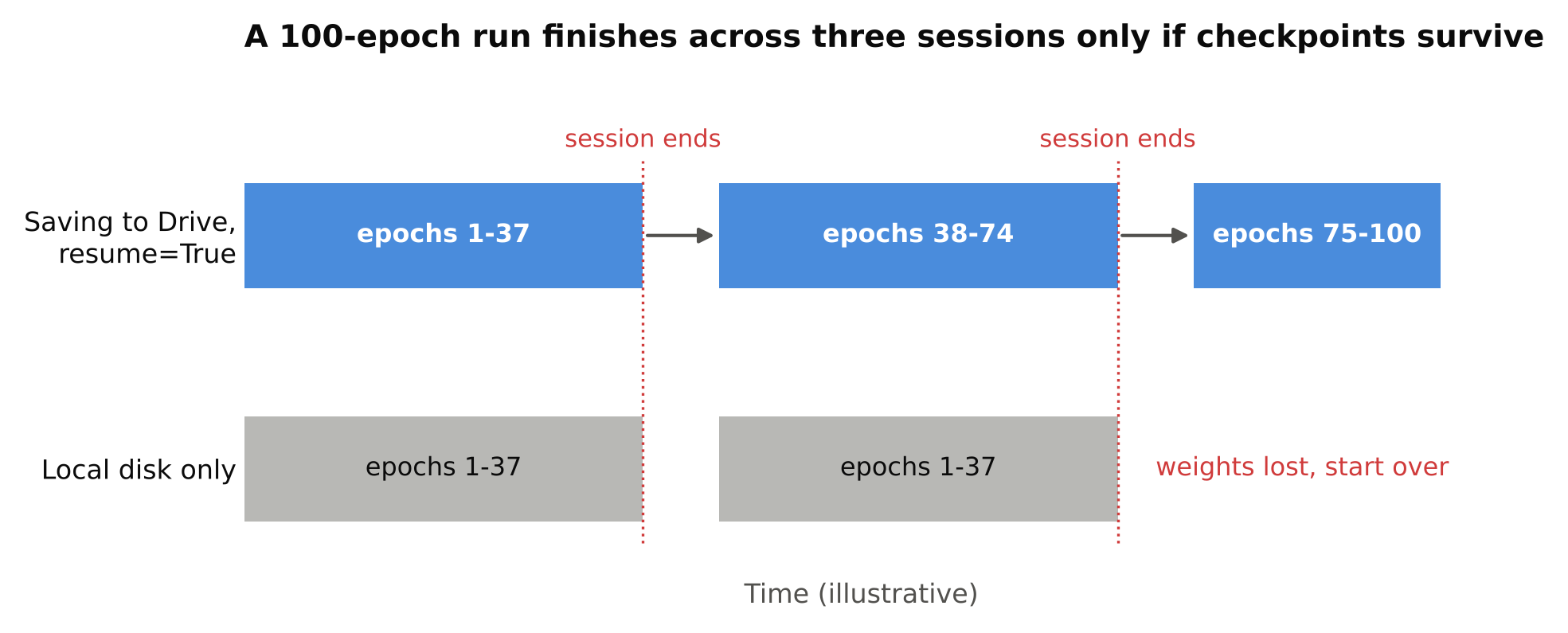
Assume the session will end before training finishes. Ultralytics can continue an interrupted run from its last checkpoint:
from ultralytics import YOLO

model = YOLO("/content/drive/MyDrive/runs/exp1/weights/last.pt")
model.train(resume=True)
This only works if last.pt exists, which is why saving to Drive matters. Also plan your epoch count with the session cap in mind. If one epoch takes a known time on your GPU, you can estimate how many fit in a session. Measure it from a short run instead of guessing.
Habit 4: write the setup as code
Every new session starts from a blank machine. Put the following in the top cells of the notebook, in order:
- Install packages (
pip install ultralytics). - Mount Drive.
- Copy and unzip the dataset.
- Check the GPU is attached.
For the last step, torch.cuda.is_available() returns True when PyTorch can see a GPU. If it returns False, change the runtime type before you waste time on a CPU run.
Pin versions if you need repeatable results. A notebook that installs "the latest" package may behave differently three months from now. Our guide to setting up a clean Python environment for computer vision explains version pinning in more detail.
Common mistakes
- Training on the local disk and forgetting to copy results. The run finishes, the session ends, the weights are gone.
- Leaving a run going and walking away. An idle timeout can stop it. Check on it, or keep sessions short.
- Reading images straight from Drive every epoch. This slows training and can look like a slow GPU.
- Not recording the settings. A notebook that changed between runs makes results hard to compare. Log your settings, or use a tracker. See experiment tracking with TensorBoard, Weights & Biases and MLflow.
- Splitting video frames randomly. This is a data problem, not a Colab problem, but it inflates metrics wherever you train. See train/validation split for video frames.
When to move on
Colab is a good place to start. You should think about something else when:
- Runs regularly hit the session cap.
- You keep losing time to disconnects and re-setup.
- The dataset no longer fits comfortably in the runtime.
- You need the same environment every time, for example for a team or for a client project.
- You need a GPU at a fixed time.
Your main options are a paid Colab plan, a rented cloud GPU, or a local machine with a graphics card for training. Each has different costs and trade-offs. The comparison in cloud GPUs for model training goes through how to choose without overspending. Check current prices before deciding, since they change often.
A reasonable path is to prototype on Colab, then move to a rented or local GPU once you know the dataset and settings work. The expensive mistake is renting a GPU to debug a dataset problem that a short Colab run would have shown.
Checklist
- Choose a GPU runtime and confirm with
torch.cuda.is_available(). - Mount Drive and send run output there with
projectandname. - Keep the dataset as one zip; unzip locally at the start of each session.
- Make runs resumable with
last.ptandresume=True. - Put all setup steps at the top of the notebook.
- Pin package versions when you need repeatable results.
- Move off Colab when disconnects and caps cost more time than they save.
Next steps: cloud GPUs for model training, train YOLO on a custom dataset.